This page has links to useful resources for the course.
Java and IntelliJ
All of the software we are using is open source (free). I encourage you to download it to install on your own computer.
- Java Development Kit: This is required to run Java programs. Make sure you download the JDK appropriate for your operating system, e.g. macOS Installer or Windows x64 Installer.
- IntelliJ IDEA: This is the Java development environment we are using in class. It has a number of versions, but the free Community edition is sufficient for this course.
Initial Setup
Once you have installed the Java JDK and IntelliJ, start IntelliJ which should open a welcome window
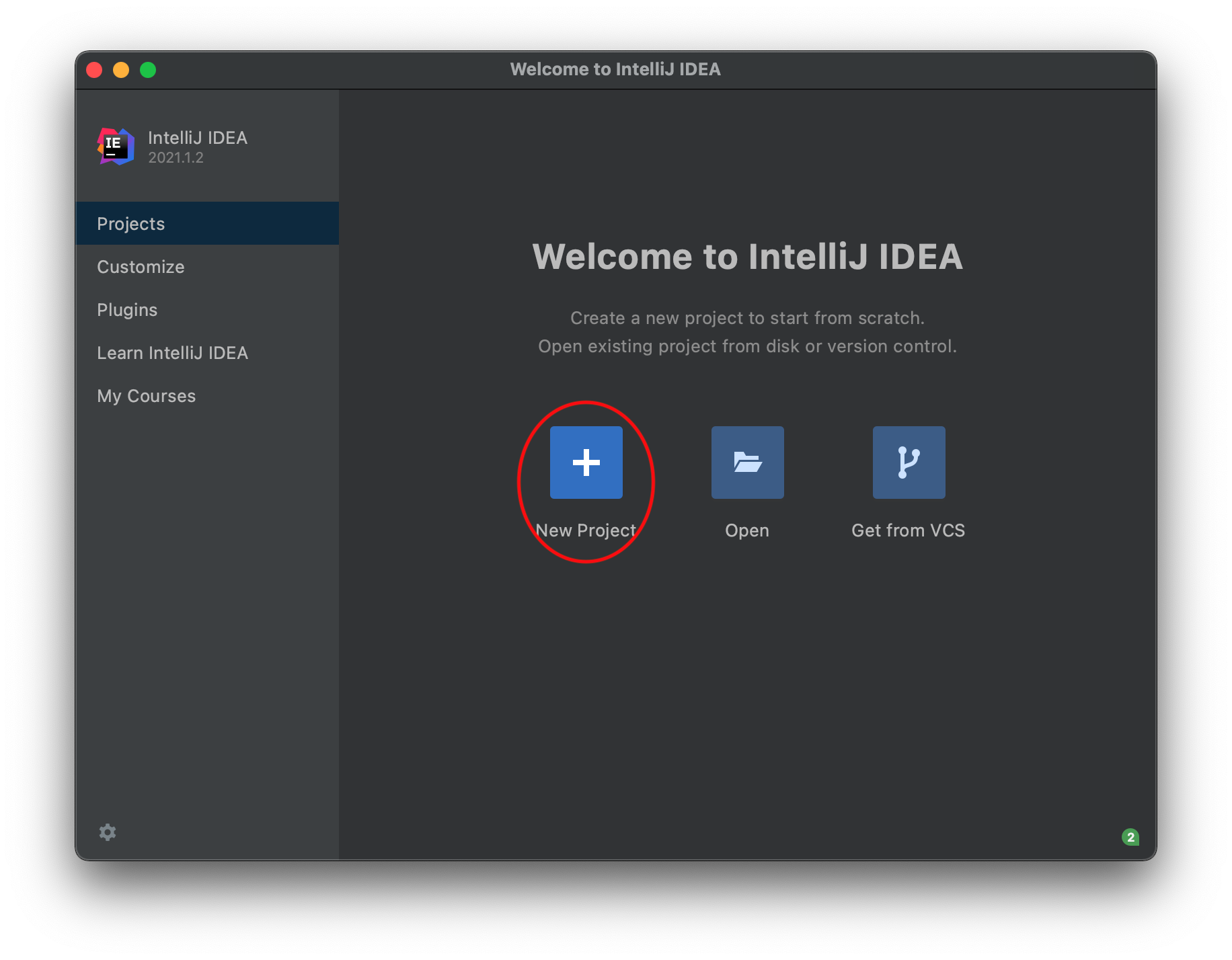
Select New Project which will open the new project dialog
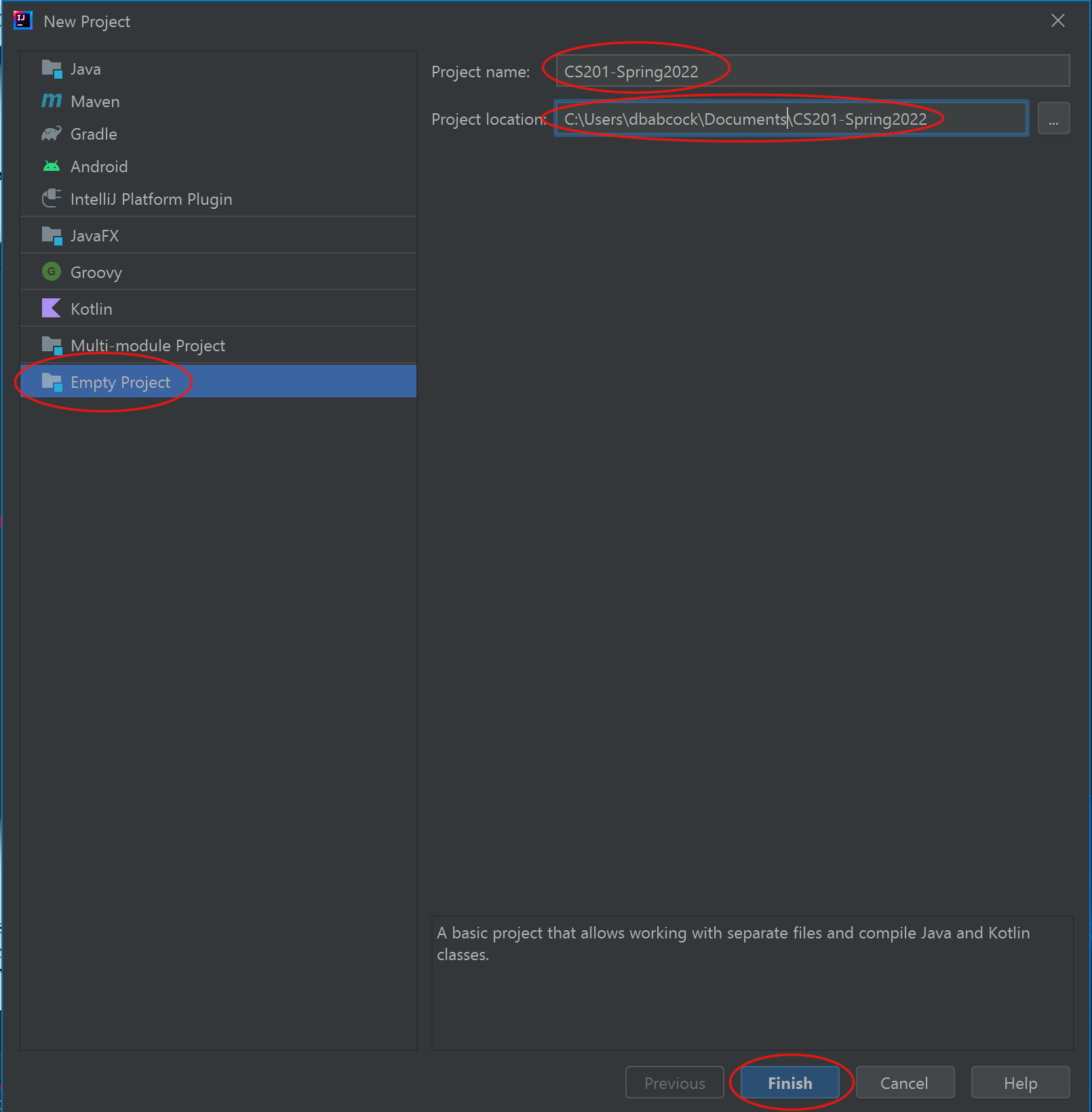
Select Empty Project from the list on the left. Change the Project name: to CS201-Spring2022 and select the Project location: to be the location where you want to keep all your CS201 projects, e.g. C:/Users/user/Documents/CS201-Spring2022 or ~/Documents/CS201-Spring2022 (BE SURE THE LOCATION DOES NOT CONTAIN A SPACE IN THE PATH or you may have issues when setting up the IntelliJ terminal), and click Finish.
This will create the root directory for all our CS201 projects.
Setting up a Terminal application
All labs, assignments, and exams will be submitted to the Marmoset submission server through the IntelliJ IDEA Terminal. This may require some additional installations depending on your operating system.
Windows 10
We will be using Cygwin as our terminal program.
Make sure you have first installed IntelliJ and set up your CS201-Spring2022 project as described above. If you already installed Cygwin for CS101, skip to step 2.
-
Install Cygwin and the various packages as described in the CS101 Cygwin installation guide. MAKE SURE YOU HAVE ALL THE PACKAGES INSTALLED (specifically zip, unzip, make, perl, curl, and openssh).
-
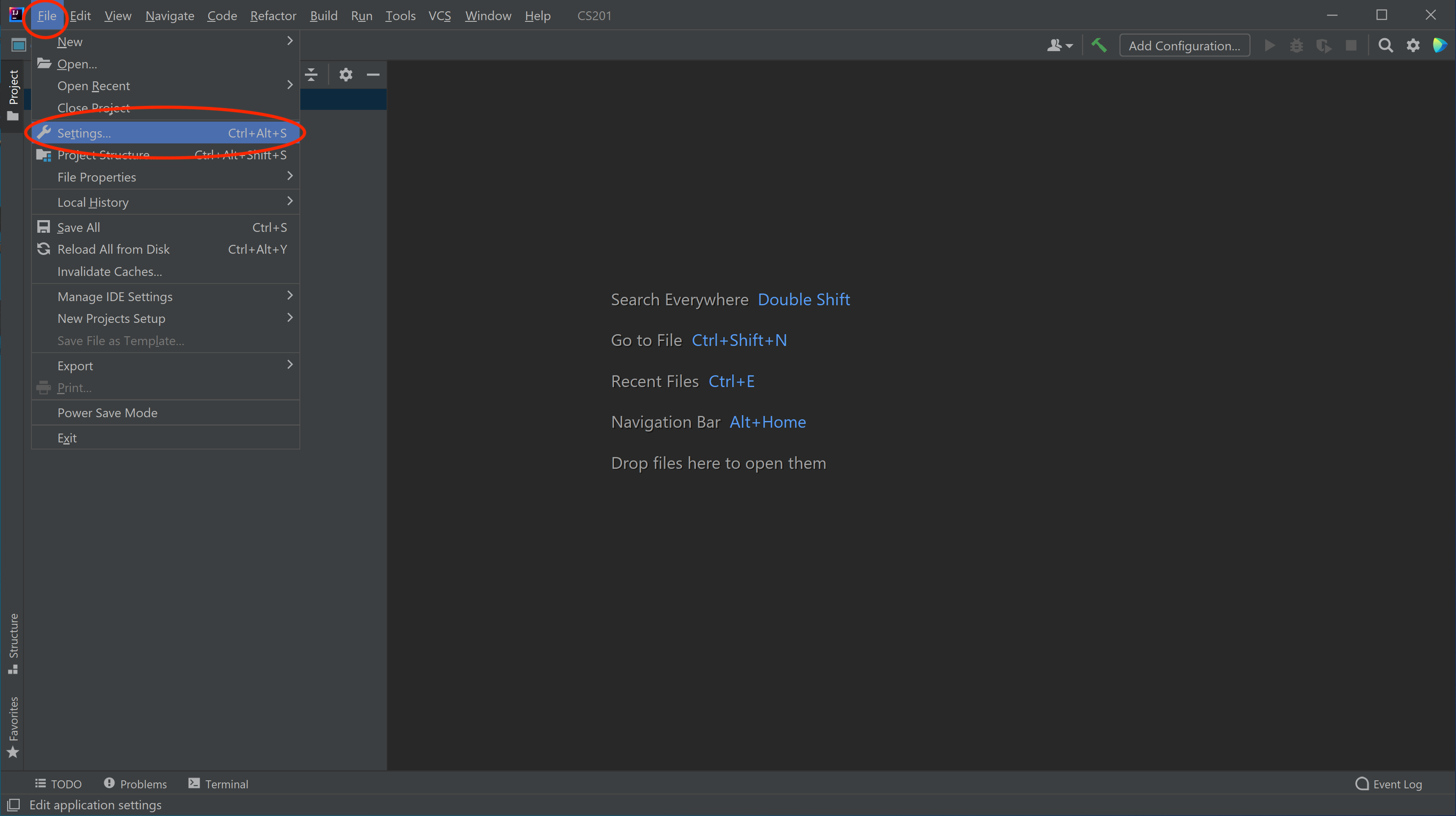
Open IntelliJ and the CS201-Spring2022 project, then select File -> Settings from the menubar.
-
In the Settings dialog, select the Tools->Terminal option, then replace what is in the Shell path: setting with
"C:\cygwin64\bin\sh" -lic 'cd "${OLDPWD-.}"; bash'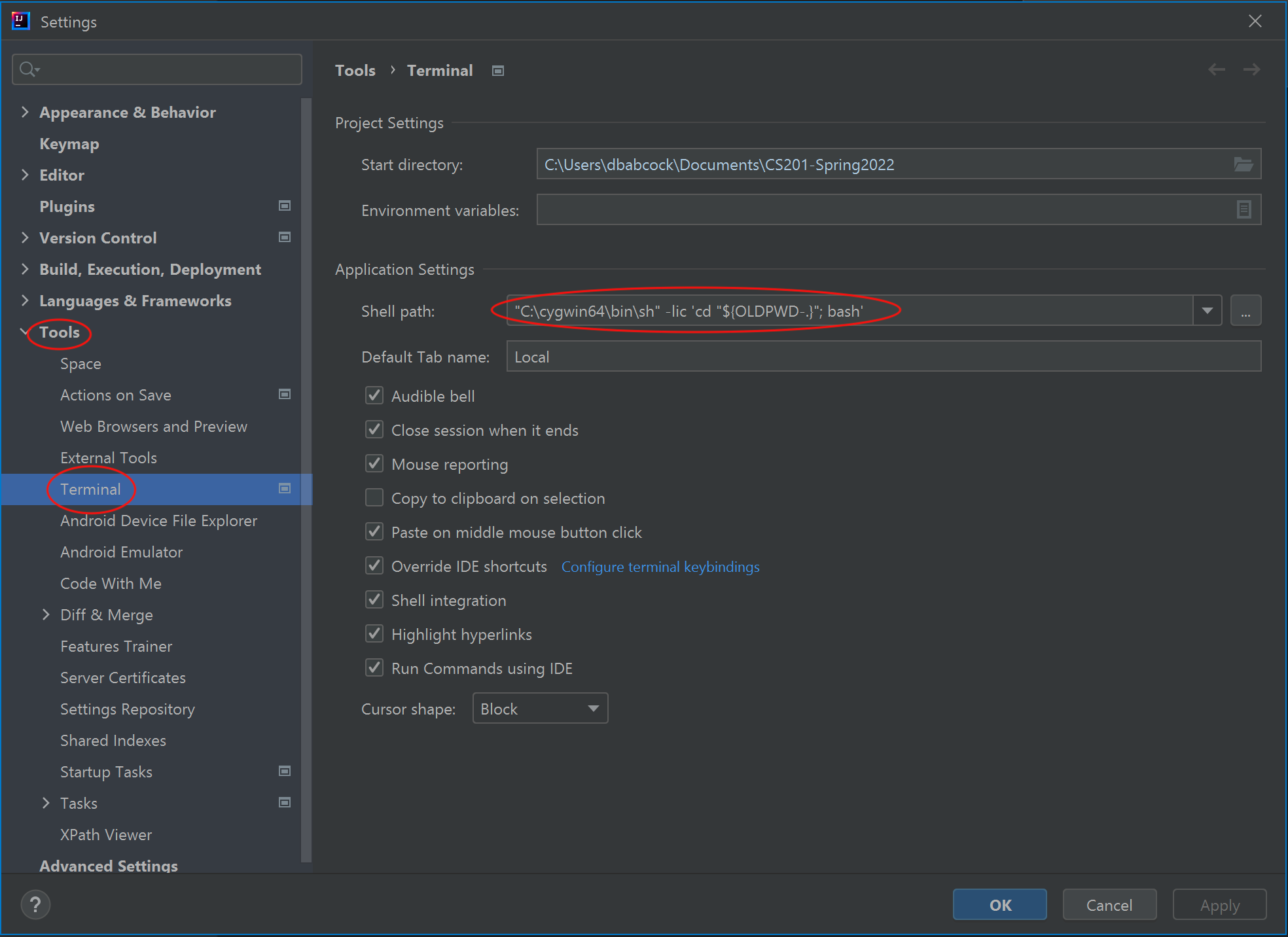
-
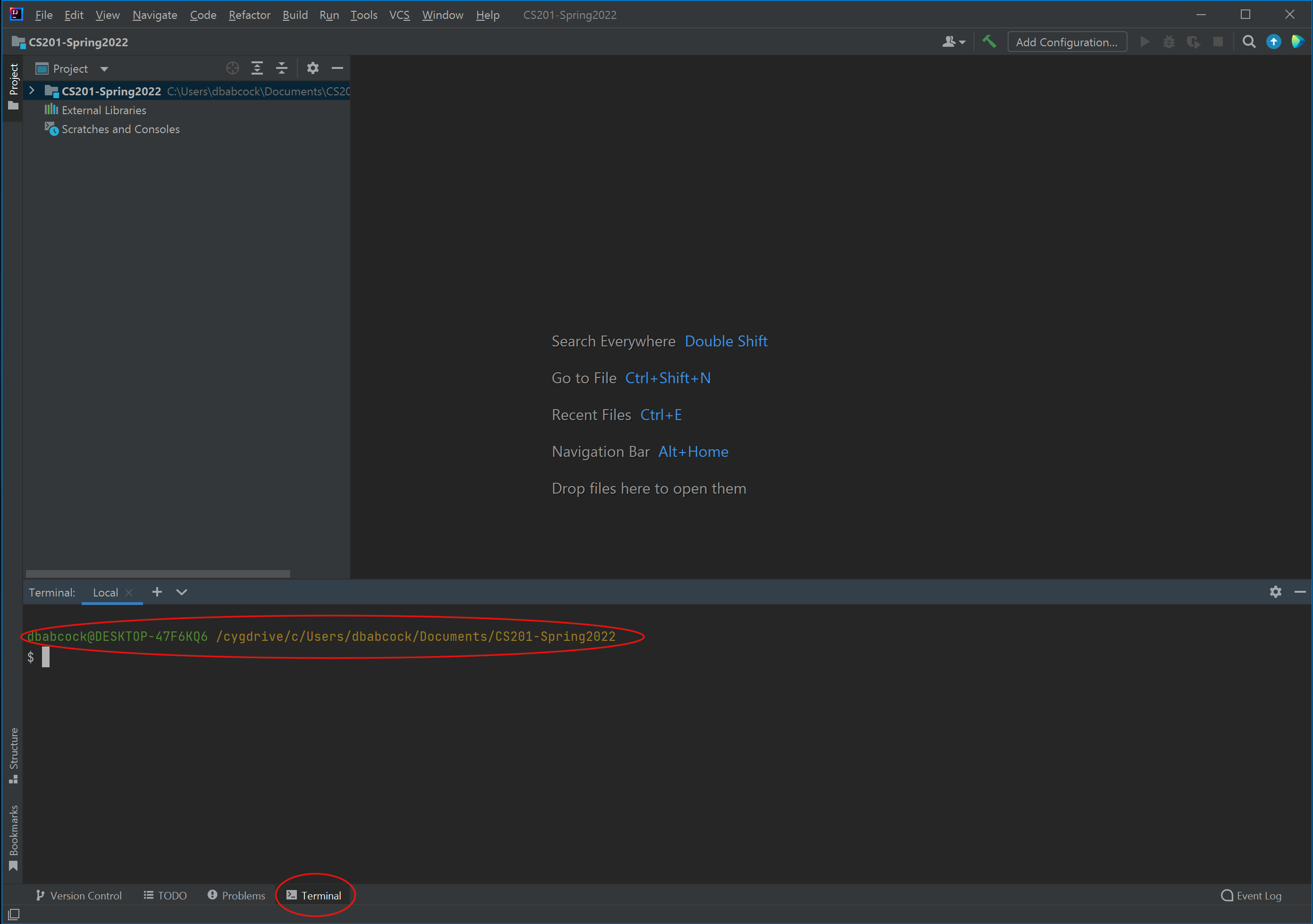
If everything is configured correctly, when you select the Terminal tab in the lower left corner of IntelliJ (you may need to do this twice), it should open up a terminal pane that displays a Cygwin prompt in the CS201-Spring2022 project directory.
Mac OSX
-
From the Mac App store, download and install XCode. Run the application which will complete the installation process. Note: If you have a new M1-based Mac, you will also need to install Rosetta as part of installing XCode.
-
Open the Terminal application from the launchpad (it may be in the Other folder) and install the command line tools using
$ sudo xcode-select --install
Submitting to Marmoset
All labs, assignments, and exams will be submitted to the Marmoset submission server through the IntelliJ IDEA Terminal. To open the Terminal, at the bottom of the IntelliJ window click the Terminal menu item which should open the Terminal in the lower IDE pane. Navigate into the proper folder and type
$ make submit
then enter your Marmoset username and password and verify that the submission was successful.
Terminal commands
A few useful terminal commands are
- ls - list the files/directories in the current location
- cd .. - change directory to the parent directory of the current location
- cd [directory] - change directory to the child directory named [directory]
