This page contains a step-by-step guide through the installation of the YCPCS Marmoset Plugin.
Section 1: Install the YCP CS Marmoset Plugin
The YCP CS Marmoset plugin simplifies assignment submissions to the YCPCS Marmoset submission server.
-
Step 1: Open your CLion IDE. You should see a “Welcome to CLion” window similar to the image below.
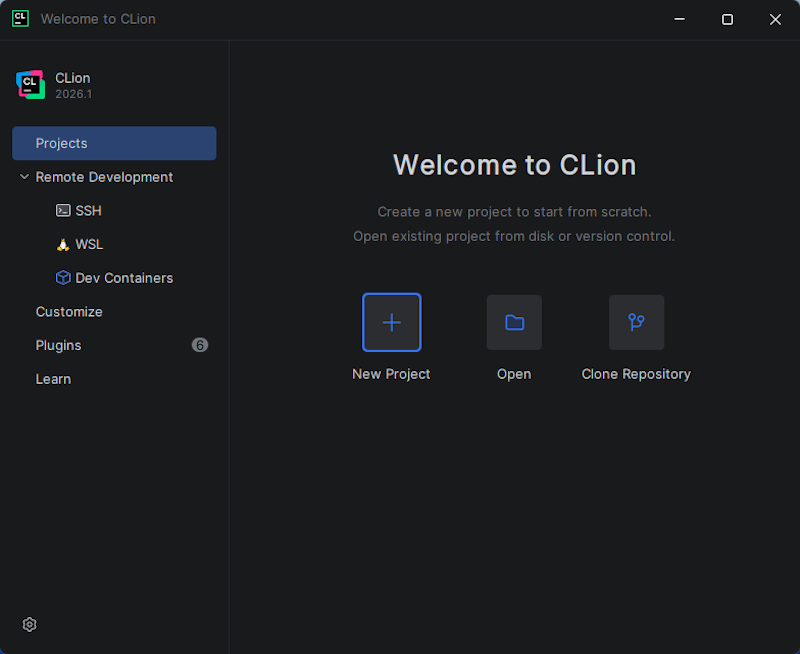
Select the Plugins menu option in the left sidebar.
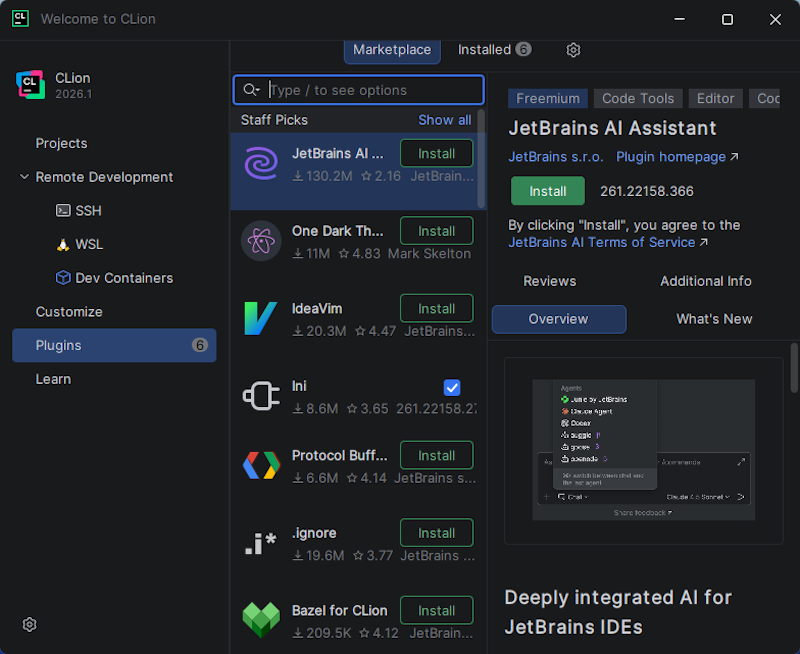
-
Step 2: In the Marketplace search bar, search for “YCPCS Marmoset Submitter”. The result window may not immediately show the icon for the plugin.
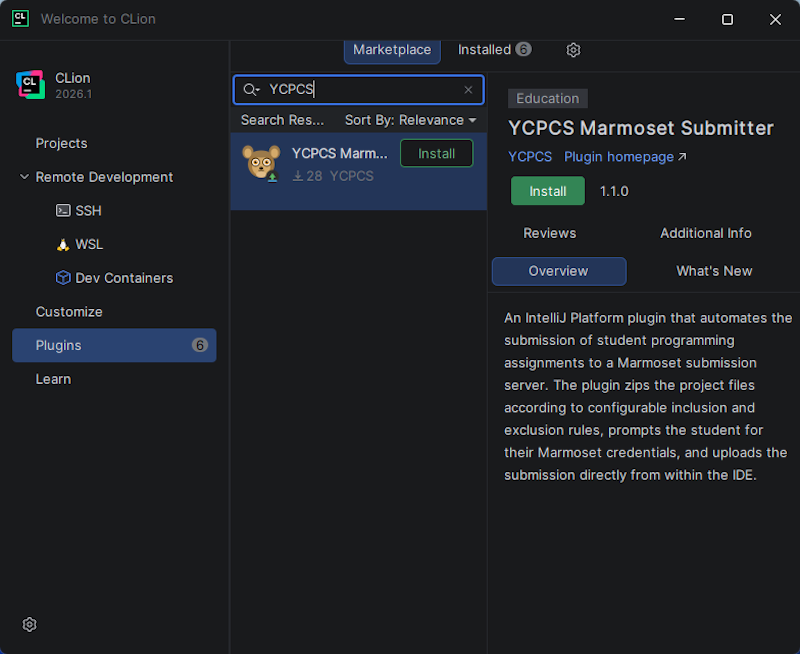
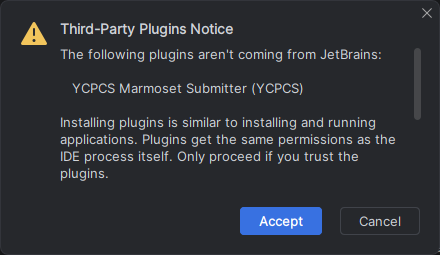
Click the green “Install” button to install the plugin. You may receive a warning similar to the image below - click Accept.
Section 2: Submitting a Project
The YCP CS Marmoset plugin only works on projects that have been properly configured by your course instructor.
-
Step 1: To submit a project, look for the following icon in the Toolbar of your IDE.

It should be visible in the top right region of your Toolbar as shown in the following image.
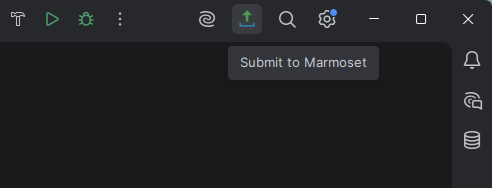
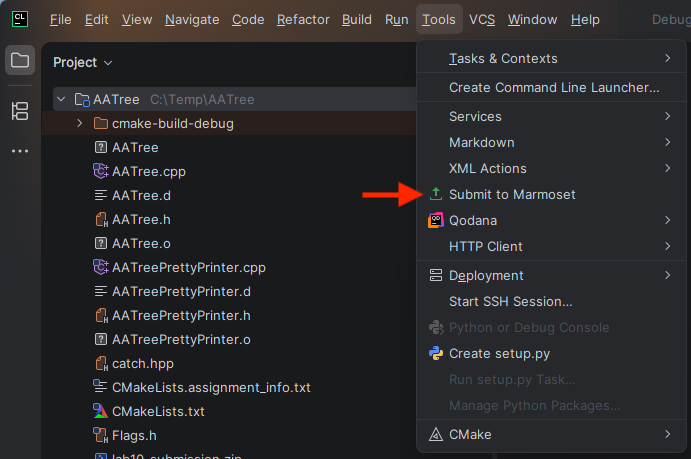
Alternatively, you will find an option to invoke the plugin in Menu → Tools → Submit to Marmoset as shown below.
-
Step 2: The first time you use the YCP CS Marmoset plugin, you may be prompted with the following warning regarding the security certificate on cs.ycp.edu.
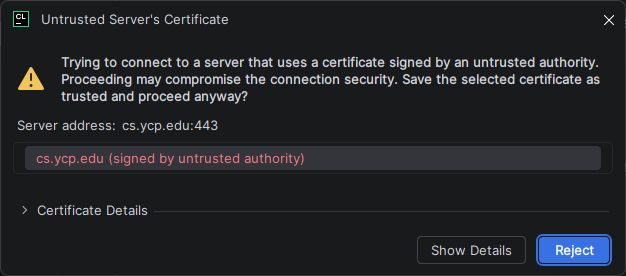
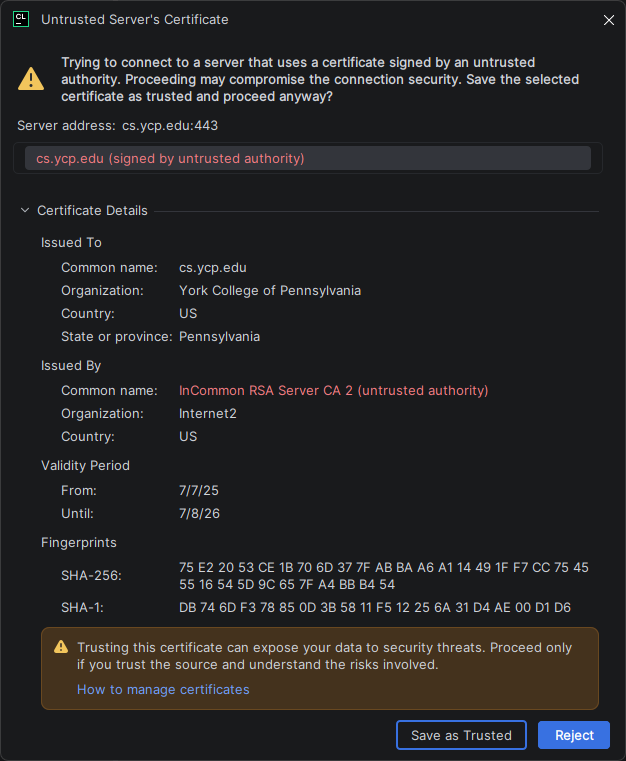
Click on Show Details and then Save as Trusted as shown below. Future attempts to submit from your IDE should not require this step.
- Step 3: Provide your Marmoset username and password when prompted to submit your project.
